
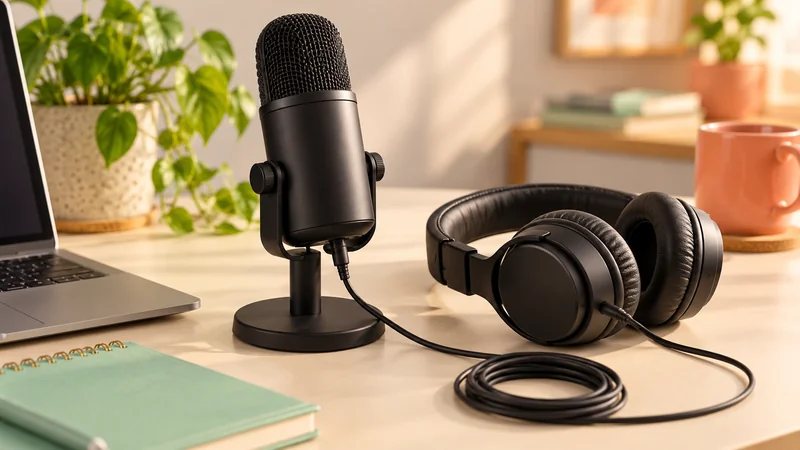
The fastest first check for live-stream echo is to mute every device playing your stream near the microphone. Put a guest call on headphones, close duplicate viewing tabs and test again. If the echo remains, check whether your broadcasting software is capturing the same microphone or call twice.
There are three common sounds people call echo: a delayed repeat of whole sentences, a hollow or doubled voice and the natural reflection of a bare room. These do not share one universal fix. Identify the sound before adding filters or buying acoustic equipment.
Listen to the timing of the repeat
Say a short phrase and stop. If the phrase returns several seconds later, a live player or delayed monitoring route may be feeding back into the stream. The delay often comes from the time the platform takes to deliver the video to a viewer.
If the voice sounds doubled almost immediately, two capture paths may be arriving slightly apart. For example, a USB microphone and webcam microphone can both capture you, or OBS may capture the same input globally and as a scene source.
If words trail off into the room but do not return as a distinct second sentence, you may be hearing room reflections. Hard floors, bare walls and a distant microphone can make speech sound roomy. That is different from a digital repeat and needs different changes.
Ask a trusted viewer which sound they hear, or make a recording and listen yourself. A short sample containing speech and silence is more useful than trying to diagnose while game sound and music cover everything.
Remove the most common playback loop
Imagine your microphone sends “hello” to the platform. Your phone plays that same stream beside the microphone. The microphone hears the phone and sends the delayed “hello” back again. This creates a loop even if the original microphone settings were correct.
Mute the phone, tablet and spare computer you use for checking the broadcast. Lowering the volume slightly may reduce the repeat but leave it audible. Mute or use headphones so the sound does not enter the room at all.
Check every browser tab. You may have both a channel viewing page and a dashboard preview playing at once. One hidden tab can be enough. Look for the browser’s speaker indicator or close viewing tabs you do not need during the stream.
After removing playback, make a fresh test. Do not judge only the final few seconds of the old echo, because buffered audio can still arrive briefly. Wait long enough to hear a new phrase travel through the revised setup.
Use headphones for guest conversations
When a guest call plays through speakers, your microphone can capture the guest’s voice and send it back to them. The guest then hears their own delayed speech. You may not hear the same problem from your position.
Ask both sides to use headphones or earbuds for the test. Set the call’s output to those headphones, not the monitor speakers. Check the actual output selection if simply plugging in headphones does not change where sound comes from.
If two people are in the same room on separate devices, they can create several paths at once. One person’s voice enters both microphones while both speakers play the call. For a simple joint broadcast, use one shared room setup or separate the audio carefully rather than letting every device listen and play.
Conference apps sometimes include echo cancellation, but it is not a promise that every room, external microphone and routing arrangement will be fixed automatically. A cleaner physical setup is easier to understand and diagnose than relying on processing to remove an avoidable loop.
Find duplicate microphone capture in OBS
Speak while looking at the mixer. If two microphone-like meters move together, identify both devices. One might be Mic/Aux, while another is named after your webcam or USB microphone. Mute one source for a short test and listen to the result.
Do not delete sources blindly. Temporarily muting lets you compare without losing a useful configuration. Once you know which path is redundant, disable that route deliberately and keep the intended microphone active.
Check Settings → Audio for global devices and inspect the sources in the current scene. A microphone added as Audio Input Capture may also be enabled globally. Likewise, a video capture device may include audio you did not intend to use.
Make one change at a time. If the voice becomes clean when the webcam microphone is muted, you have evidence of the extra path. If muting it changes nothing, restore any needed setting and investigate the next source instead of piling unrelated fixes on top.
Understand monitoring before using it
Audio monitoring lets you hear a captured source locally. It is helpful for checking a microphone or a guest, but a monitoring output can itself be captured by desktop audio. That can put another copy into the broadcast.
Open OBS advanced audio properties and inspect the monitoring mode for the affected source. Also check the monitoring device in the audio settings. Ask where the monitored sound goes and whether that same destination is being captured again.
For a basic voice stream, you usually do not need to hear a delayed software copy of your own voice throughout the session. A microphone or interface with direct headphone monitoring may offer a more comfortable local check, but follow its manual and confirm that it does not create another capture route.
Avoid random combinations of virtual cables, “listen to this device” settings and monitoring modes while troubleshooting. Each creates another possible branch. Return to one microphone and one clear output, prove that they work, then add the necessary routes deliberately.
If only one guest or viewer hears echo
Ask who hears their own voice and who hears the repeat of everybody. If a guest alone hears themselves, their voice may be returning through your outgoing call mix. If all viewers hear every sound twice, the duplicate likely sits in your broadcast mix or room.
Test with the guest speaking while you stay silent, then reverse roles. This simple comparison can locate the direction of the return. Ask each person to mute their own local stream player as well as using headphones for the call.
For a complex guest production, mix-minus means sending the guest a mix that excludes their own voice. It avoids giving their speech back to them through the call. Beginners do not need to build an advanced mixer for every guest session, but the concept explains why sending the entire stream audio back into a call can cause trouble.
If a single viewer hears echo while others do not, they may have two players open. Ask them to close the extra tab or check whether a television and phone are both playing. Do this before changing a broadcast that sounds correct to everyone else.
Reduce room reflections economically
Move the microphone nearer the speaker within its suitable working range. A closer useful voice generally competes better with reflected room sound than a voice captured from across the table. Face the microphone’s intended pickup side and keep the position consistent.
Try a smaller furnished area with curtains, a rug or soft furniture instead of a bare room. Keep fabric away from equipment ventilation and heat. You do not need to cover every wall or buy decorative foam before hearing what a different position achieves.
Reduce unnecessary speaker playback in the room. Noise suppression can help with some steady background noise, but it is not a universal repair for long room reverberation or a repeated broadcast. Heavy processing may also make speech sound watery or cut off quiet words.
Record the same short explanation from two positions and compare at a similar listening volume. Choose the clearer setup, not simply the one with the loudest waveform. The purpose is understandable speech, not a particular meter appearance.
Confirm the fix under real conditions
After a clean voice-only test, add the game, presentation or guest again one at a time. If the problem returns only when one source is introduced, inspect that source’s capture and playback routes. This is faster than starting the whole setup from scratch.
Make a local recording and check the actual stream separately when possible. If the local recording is clean but the viewing device creates the echo, investigate playback and the remote route. If the recording itself is doubled, fix the mix before looking at the platform.
For complete silence rather than repetition, use live stream has no sound. For a clear basic arrangement of scenes and audio sources, use the OBS beginner guide. Keep the working setup simple enough that you can explain where each sound comes from and where it goes.