
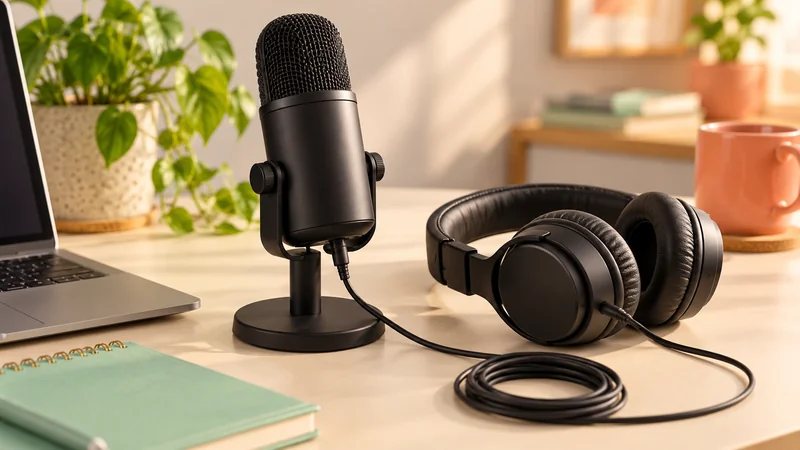
If your live stream has no sound, first find out whether everyone is missing all audio, only your voice is missing, or one viewer cannot hear anything. Then follow the signal from the microphone to the app and from the app to the viewer. Changing every audio setting together makes the fault harder to locate.
For an immediate check, unmute the microphone, confirm the app has microphone permission, select the intended input and make a short local recording. If the recording is audible but the live output is silent, investigate the broadcast mix or platform connection rather than the microphone itself.
Ask a question that narrows the problem
Ask a trusted viewer whether they can hear your voice, game sound and any guest separately. “No sound” can describe several different faults. If the game is audible but your voice is not, the stream is carrying audio and the microphone path deserves attention.
If only one person reports silence, ask them to unmute the player, raise the device’s media volume and check where their headphones are connected. A phone can send sound to Bluetooth earbuds in another room. That viewer’s issue does not justify changing a working broadcast for everyone else.
Check the output on a second device using headphones. Keep it away from the main microphone or mute its speaker after checking. Otherwise the test itself can create an echo. Allow for the delay between speaking and hearing the live version.
For a public session, tell viewers briefly that you are checking the audio. If the fix needs several minutes, end deliberately and restart after testing. A long silent video is difficult to watch and gives you little useful feedback.
Trace a simple signal path
For speech, the path is: your voice → microphone → operating system permission and input → broadcasting app → outgoing stream → viewer’s player. Every stage must work. A microphone light proves power, not that the chosen app is receiving speech.
A headset has two jobs: its earphones play sound and its microphone captures sound. One can work while the other does not. Hearing the game through the headset therefore does not prove that its microphone is selected for the stream.
Similarly, a webcam can contain a microphone, and a laptop can contain another one. Connecting a better USB microphone does not force every app to use it. The system’s “default” input may change after plugging in a headset, docking station or monitor.
Write down the intended input name and output name while troubleshooting. You do not need a formal worksheet; just identify which physical device each label represents. Selecting a device because its name looks familiar is a common reason for capturing silence.
Check the physical microphone first
Look for a mute switch on the microphone, headset cable or audio interface. Some headsets mute when the boom is raised. A microphone can also be plugged into an incompatible socket or adapter. Follow its manufacturer’s connection instructions rather than assuming all similar-looking plugs carry the same signals.
Reconnect the cable firmly and try a direct USB port if a hub is involved. If the device requires power, check its normal power indicator. Avoid changing several cables at once; a successful test is more useful when you know which change caused it.
Speak toward the correct side of the microphone. Many desktop microphones capture from the side rather than the top. Check the device’s markings or manual. Raising gain dramatically to compensate for speaking into the wrong side can add room noise without making speech pleasant.
Make a recording in the phone’s camera app or the computer’s basic recording tool. Use ordinary speech, pause and then listen. If this basic test is silent too, solve the connection or system input before changing live-platform settings.
Give the app permission to listen
On a phone, open Settings, find the broadcasting app and inspect its microphone permission. Camera and microphone permissions are separate. On Android, this is often under App info → Permissions; on iPhone, inspect the app’s Settings entry or the microphone privacy list.
On Windows, look in Settings → Privacy & security → Microphone and check the relevant app-access controls. Desktop software may have a separate access switch from store apps. On a Mac, inspect System Settings → Privacy & Security → Microphone for the application.
A browser broadcast has another layer: the website’s permission. Open the site’s controls near the address bar and inspect microphone access. Then check which input the live page has selected. Allowing the browser to use a microphone does not guarantee the page chose the intended one.
After a permission change, reopen the app or follow any restart instruction shown by the system. Retest with a short recording or preview. Do not leave the public stream running while repeatedly reconnecting hardware unless you understand what the audience is receiving.
Read the meters in OBS
In OBS, the Audio Mixer shows a meter for each captured audio source. Speak and see which meter moves. If the intended microphone meter stays still, open the device’s properties or Settings → Audio and select the actual input.
A moving meter proves OBS receives something, but not necessarily your voice. Stop speaking and listen to the room. If the meter keeps moving, it may be capturing a fan, desktop sound or another device. Use a short recording to identify what is present.
Check the source’s mute icon and volume slider. Then check whether you added the same microphone twice: once as a global audio device and again as a scene source. Duplicate capture can create strange sound rather than silence, so keep one clear route while testing.
The monitoring choice controls what you hear locally. The outgoing stream is a different destination. In advanced audio properties, Monitor Only (mute output) can let you hear a source while excluding it from the broadcast. Use the setting that matches the job, and confirm with a recording or remote listening check.
Check tracks and different kinds of audio
OBS can send or record different audio tracks. A source assigned only to a recording track may be absent from the streaming track. If the meters work but the audience hears silence, inspect the track selected for streaming and the source’s track assignments.
Return to a simple setup while diagnosing: one microphone, one intended desktop or application sound source and the required output track. Complex track separation is useful later for editing, but it creates more places for a beginner to send sound somewhere unintended.
For screen sharing, showing a window does not always include its sound. A browser’s tab-sharing option may include a separate Share audio control. Discord, YouTube, operating systems and capture sources have different capabilities. Choose the supported sharing route for the app and device rather than assuming the image carries sound automatically.
If a guest is silent, ask whether you can hear them before the broadcast mix. They may have muted their own microphone or selected the wrong input. If you hear them locally but viewers do not, inspect how the guest-call sound enters your outgoing mix.
When sound is present but too quiet
Move the microphone to a sensible working distance and speak normally. The useful distance depends on the microphone. A close headset microphone behaves differently from a laptop microphone across a desk. Improve placement before applying large software boosts.
Balance speech against game or demonstration audio. A voice can be technically present yet impossible to follow beneath a loud game. Make a test with the loudest section you expect, not only the quiet menu screen.
Avoid pushing meters against their maximum. Distortion caused by overload cannot be repaired simply by lowering a later slider. Reduce the level earlier in the path and record another sample. Our echo guide covers a different problem: hearing the same sound more than once.
Prove the fix and keep it simple
Record a short sample containing speech, the relevant application sound and a pause. Listen with ordinary headphones. Then check the actual live output with a trusted viewer if the fault appeared only during broadcasting. These two tests answer different questions.
Once it works, note the input name and the setting you changed. Recheck after reconnecting devices or installing updates, because an app may return to a default device. You do not need to replace the whole setup every time a label changes.
If the picture also freezes, investigate the connection separately. If you are still learning the mixer, use the OBS setup guide. A clear signal path gives you a repeatable way to solve the next audio problem instead of guessing again.