TikTok
How to go live on TikTok: your first broadcast, button by button
Find TikTok LIVE, check your account access, set up your phone, manage comments and finish your first broadcast without guessing.

THE PRACTICAL STREAMING GUIDE
Find the right button. Get your sound and picture working. Learn to go live, one clear step at a time.
Choose your app Want to practise first?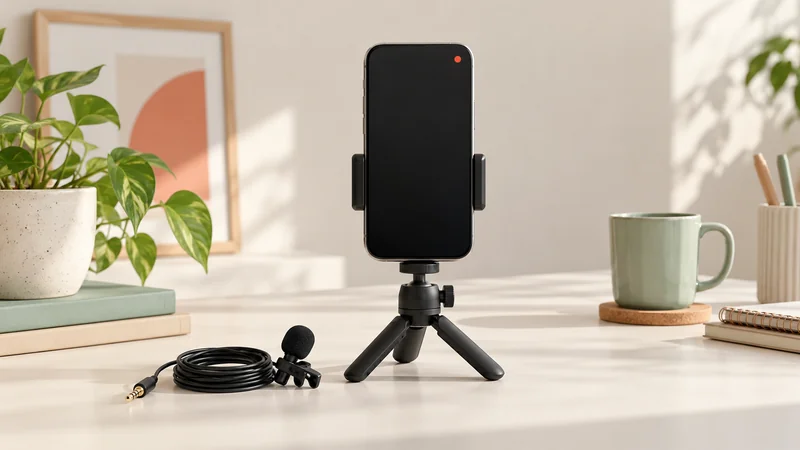 Start with what you have.
START HERE
From finding LIVE to ending the broadcast.
THE FIRST BROADCAST
Find TikTok LIVE, check your account access, set up your phone, manage comments and finish your first broadcast without guessing.
Understand YouTube's mobile and webcam requirements, find Go Live, choose visibility, check audio and end your stream correctly.
Choose camera or game streaming, find Twitch's Create controls, connect OBS, manage chat and save your past broadcasts.
SOMETHING NOT WORKING?
A missing voice, a repeated sentence or a loading circle each tells a different story.
A LITTLE MORE CONTROL
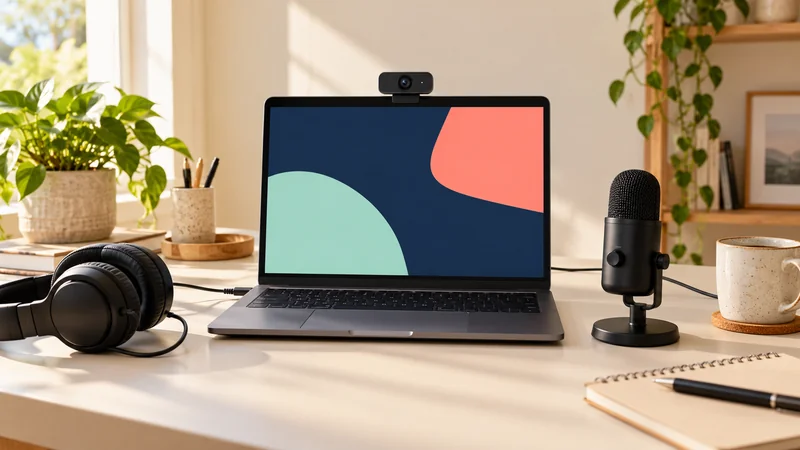
OBS, EXPLAINED
Learn what scenes and sources mean, then build a setup you can understand.
Set up OBS StudioUse local recording, explicit private settings and a trusted viewer to test the right things without mistaking an unlisted link for privacy.
Choose a tab, window or display, understand audio sharing, avoid the mirror effect and stop sharing deliberately.
Check desktop LIVE access, understand scenes and sources, add a camera or game and preview the result for phone viewers.
Find Go Live, share the right window, check channel permissions and audio, and stop sharing without leaving the whole call.
Understand the difference between your channel link, server URL and private stream key before connecting OBS or another encoder.
Find the current Kick dashboard controls, connect your stream URL and key, set a title and check your first broadcast.
Look up the app, the button or the problem you are trying to understand.