
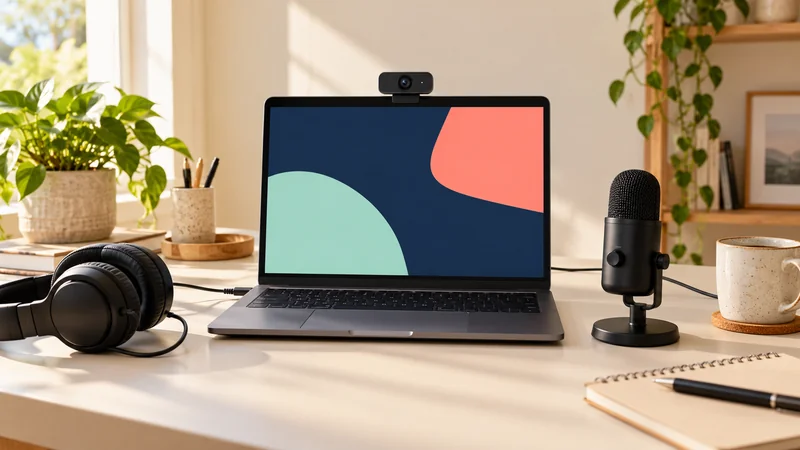
The safest first rehearsal is a local recording, which tests the camera, microphone and layout without sending a live video to a platform. To test the internet path as well, use a platform’s explicit private or test mode and verify its audience settings before starting. An unlisted link is shareable; it is not the same as access-controlled private viewing.
Use harmless demonstration material for every technical test. That way a mistaken visibility setting does not expose information you intended to keep private. A rehearsal should prove a specific part of the setup, not depend on nobody noticing a public broadcast.
Know what each kind of test can prove
A local recording checks what your device can capture and assemble. You can hear the microphone, see the scene and notice a missing source. It does not test the upload connection or whether the receiving platform accepts your stream.
A private platform test adds the transmission path and the platform’s processing. It can reveal connection drops, event setup mistakes and sound missing from the outgoing mix. It still does not prove that a different network or a much longer session will work perfectly later.
A trusted viewer checks the receiving experience. They may spot unreadable text, an audio imbalance or an invitation link that does not open correctly. Their successful view is useful evidence for that device and connection, not a guarantee for every audience member.
Separate these questions so you do not repeat tests unnecessarily. If the camera is black in a local recording, fix capture first. There is no reason to keep creating live events to investigate a fault that exists before anything reaches the internet.
Begin with a phone recording
Place the phone where it will sit during the live session. Use the same microphone or headset if the camera app supports it. Record a short explanation at your normal speaking volume, including the physical action you intend to show.
Play it back with ordinary headphones. Listen for distant speech, rubbing sounds from a cable and noise that competes with words. Watch whether your hands cover the object or whether the important detail goes outside the frame.
Try the front and rear cameras if you are choosing between them. The rear camera can give a useful object view, but you may not be able to see your own framing while presenting. Choose a stable arrangement rather than assuming the camera with the best specification is always easier to use.
This recording is not a complete test of TikTok, Instagram or another live app’s audio routing. An app can select devices differently. It is still a useful early check because it proves whether the basic position and equipment can produce understandable material at all.
Make an OBS recording before streaming
Create the intended scene, add the camera or screen source and select the microphone. Use Start Recording, perform a short sample and then select Stop Recording. Open the saved file rather than relying only on the live preview.
Include all the kinds of sound the session needs: speech, game sound, a guest sample or a permitted presentation clip. Leave a pause between them so you can identify each source. A voice-only test cannot prove that a guest’s audio will be included later.
Check the recording location and available storage. A file saved to an unexpected folder is easy to mistake for a failed recording. Keep the test small and confirm the file plays before leaving a long recording running.
If the preview works but the recording is silent, inspect recording-track assignments and the source mix. If both are wrong, use the audio troubleshooting guide before adding a live platform to the investigation.
Use YouTube visibility deliberately
For a YouTube test, prepare the event on the correct channel and inspect its visibility. Private is designed for authorised viewing. Unlisted makes the link available to people who have it, including people who receive it from somebody else.
If you invite a tester to a private event, use the account and sharing process YouTube requires. Send the invitation ahead of time and confirm they can open it. Do not change the event to public just because the tester signed into the wrong account.
An unlisted technical rehearsal can be practical with non-sensitive material, but treat it as link-accessible. Avoid putting passwords, personal messages or private work on screen. The audience selector does not prevent an authorised viewer from recording what they can see.
Check the replay separately afterward. Live visibility and the available archive controls may need their own inspection. If you only created a throwaway test, manage it deliberately once you have the result rather than leaving a confusing item among useful public videos.
Do not invent a private mode on another platform
Different apps provide different practice, audience and test tools, sometimes only to particular accounts. Read the label and help text of the exact feature you can access. A setup preview is not automatically an access-controlled broadcast rehearsal.
If an app gives you no confirmed private route, use local recording for capture and choose another supported controlled environment for the network test. Do not assume that a new Twitch channel, a quiet TikTok session or a Page with few followers will remain private.
A small Discord call can help test a screen explanation with invited people. Check who is in the call or who can enter the voice channel. Discord’s Go Live wording refers to sharing within that environment; it is not the same distribution model as a public streaming channel.
For Facebook, inspect the audience options offered to the actual profile or destination. A personal profile and a Page do not necessarily offer the same controls. Do not apply instructions from one destination to another without checking the available setting.
Give your tester a useful job
Ask the tester to report one thing at a time. First, can they hear ordinary speech clearly? Second, can they read or recognise the smallest important detail? Third, does the picture continue moving during the busiest part of the activity?
Ask them to use the kind of device your viewers are likely to use. A demonstration that is readable on a large desktop screen can be frustrating on a phone. They should not need to guess the button name from a tiny pointer movement.
Have them mute their playback speaker after the sound check or use headphones. If their device sits beside your microphone, the test can create its own feedback loop. Our echo guide explains how that happens.
Use a simple spoken marker to understand delay: say a short unique phrase, then ask when it arrives. Do not confuse normal delivery delay with a frozen stream. You are testing whether the content arrives consistently, not expecting every platform to behave like an immediate local video call.
Test a realistic sequence, including the end
Rehearse the moment you usually forget: switching from camera to screen, opening the intended menu, showing an object close up or bringing in a guest. A perfectly still preview does not test those transitions.
Watch for unintended changes in microphone choice when a headset connects or a camera switches. Move between the same scenes and apps you plan to use. If a problem appears only after a particular action, you now have a reproducible trigger rather than a vague complaint.
Practise stopping the screen share and ending the whole broadcast as two separate actions. Confirm the platform’s offline state before discussing anything private. It is better to learn the end control during a rehearsal than after a public session where you assume closing an overlay was enough.
Check a few minutes of realistic activity, and run a longer test if heat, battery or sustained network performance is a material concern. There is no universal rehearsal duration that proves every event. Match the test to the failure you need to rule out.
Turn the result into one clear next step
If the local recording is clear and the transmitted version breaks up, investigate upload stability. If both versions have distant speech, change microphone placement. If your tester cannot read the demonstration, increase application zoom or show a smaller area.
Keep the successful arrangement and change only the weak part. Rebuilding everything after one bad test removes the comparison that could explain the problem. A short note of the device, source names and useful setting is enough to make the next test repeatable.
Before the real event, reopen the intended account, verify the audience and perform a final brief capture check. Rehearsal reduces uncertainty; it does not excuse starting on the wrong channel or copying yesterday’s visibility choice without looking.