
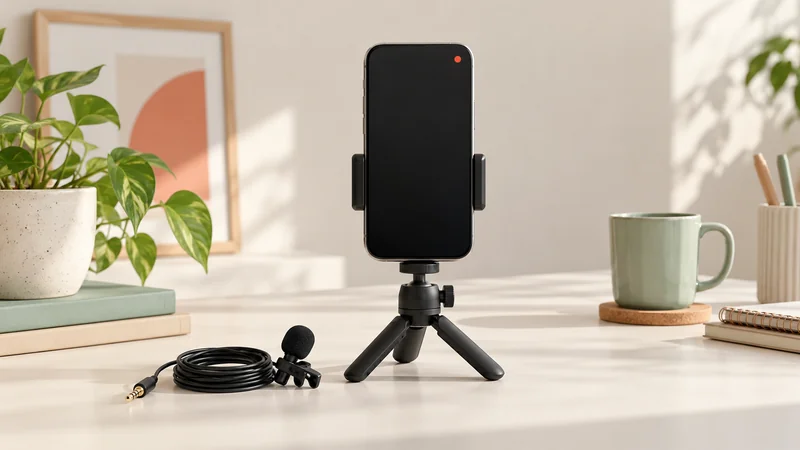
To start an Instagram Live, open Instagram’s creation camera, find Live among the creation modes, prepare the session and use the live broadcast button. If Live is absent or an eligibility message appears, resolve the account-access issue before adjusting camera or microphone settings. A working camera does not by itself make an account eligible to broadcast.
Instagram changes access conditions and interface layouts. Read the current message on your own account, including any follower, account-visibility or age conditions. Do not rely on an older tutorial that says every account can go live. This guide focuses on finding the right function and completing a clear first session when your account has access.
Start with the right Instagram account
Open your profile and confirm the username. If you manage more than one account, the profile currently selected is the one whose tools and restrictions apply. Switching to a different account can change which controls you see, even on the same phone.
Choose one subject that works in a vertical picture. A close demonstration of an object, a short explanation or questions about a specific topic are easier to follow than an unfocused conversation. Place the phone on a support so you can use both hands without shaking the image.
Open the app store and install any normal Instagram update offered for your device. This helps when instructions and button names differ because the app is old. It does not override an access restriction. Avoid unofficial apps that claim to add hidden Live features or ask for your Instagram password.
Think about the audience you actually want. A public broadcast may reach people outside your existing followers. A small follower count is not a privacy setting. If the subject is intended for a few invited people, consider a private call or a controlled Discord screen share rather than assuming a public live session will stay unnoticed.
Find Live rather than Reel or Story
Use Instagram’s create control or open its creation camera. Depending on the app version, you may enter from a + menu or a swipe into the camera. Move through the available modes and look for Live. Story, Post and Reel create different kinds of content.
Check the mode label before pressing the large camera control. A Reel recording button does not begin a live broadcast, and a Live button is not merely recording a draft for later. When uncertain, back out and identify the mode rather than experimenting while the camera points at something private.
If Instagram displays an explanation of why you cannot broadcast, read it fully. Note whether it concerns followers, profile visibility, age, a restriction or another condition. Each points to a different next action. Reinstalling the app repeatedly will not change an account-level requirement.
For account restrictions, look for Account Status in Instagram’s settings and activity area, or follow the notice’s own help route. Names and positions can vary. A useful support request describes the missing function and the exact message rather than only saying that the camera does not work.
Prepare the image and microphone
Allow Instagram to use the camera and microphone through the phone’s permission prompt. If you denied access earlier, open the phone’s Settings, find Instagram and inspect its permissions. On Android this is commonly under the app’s information page; on iPhone it is available through the app or privacy settings.
Clean the camera lens with an appropriate soft cloth. Put light in front of the subject. If a bright window is behind it, turn the setup so the subject is easier to see. You can often improve a dull picture without adding a ring light or buying another phone.
Keep the microphone opening clear of your hand, a thick cover or the table edge. If you plug in a headset, the phone may use its microphone instead of the phone’s built-in one. Make a short camera recording with the intended equipment to hear which arrangement works best before the live session.
Frame the important action away from the edges and lower part of the picture, where comments and controls may appear. For a craft demonstration, bring the work close enough that viewers can see the change you describe. Show one item at a time instead of filling the frame with a whole collection of tiny objects.
Add a useful title and understand the audience controls
If your Live setup offers a title, name the subject in plain language. “Three ways to light a small desk” tells a viewer what to expect. Avoid a title that promises to answer every possible question about equipment when the session only covers one lamp.
Inspect any audience or practice options offered to your account. A preview is useful for framing, but do not assume that looking at yourself on screen means you are in a private rehearsal. Read the audience label and final start action. If you cannot confirm privacy, use a local camera recording for practice.
Age safeguards can also affect access. Meta has documented parental permission requirements for Instagram Live for under-16 Teen Accounts. Follow the current in-app process rather than entering a false date of birth or borrowing someone else’s account.
When you are ready, use the final live-start control and wait for the connection to complete. Look for the live indicator, timer or live interaction controls. Say what you are demonstrating immediately; someone who joins should hear useful context instead of a long discussion about whether the broadcast has begun.
Follow comments and invite a guest carefully
Read a few comments between sections of your explanation. You can say, “I’ll show the second example and then take questions.” This gives viewers a predictable rhythm and lets you finish a thought without constantly interrupting yourself.
Use the comment and viewer controls available in the live interface to manage unwanted messages. The exact icons may change. Look for additional options attached to the comment or viewer rather than assuming that every control is in the main settings menu.
For a guest session, agree on the subject and timing beforehand. Use the Live invitation or request controls offered to your account and check who you are admitting. An unexpected request is not a reason to bring an unknown person straight into a conversation aimed at beginners.
Each guest needs their own usable microphone and connection. If both of you are in the same room with speakers turned up, the sound can travel from one device into the other. Use headphones or one shared setup instead. Our echo guide explains how to find that loop without changing every setting at once.
Deal with a missing picture or silent sound
If the image is black, first check camera permission and whether another app is using the camera. Close the other camera app and reopen the preparation screen. Select the intended front or rear camera. A camera pointed into a dark surface can look like a capture failure even when it is working.
If viewers cannot hear you, check microphone permission, an on-screen mute control and any connected headset. Ask whether everybody has the problem or only one viewer. One silent viewer may have muted their own player; everybody losing your voice suggests the issue is in your setup.
If the session repeatedly disconnects, stay near a reliable connection and avoid switching networks midstream. A stronger-looking Wi-Fi symbol does not prove that upload capacity is steady. See upload speed for live streaming for a practical way to check the sending side of your connection.
End the broadcast and inspect replay options
Use the live interface’s end control, often an X or end button, and confirm the action when asked. Wait for Instagram to show that the session is finished. Closing a menu, turning the phone over or leaving the camera view is not a dependable confirmation that transmission stopped.
After ending, inspect the save, download, share or archive options Instagram offers. Availability can depend on the account and settings. Do not promise viewers a replay until you know one was actually saved and can be shared. A local recording is a separate item and does not automatically include the live chat or guests.
Before sharing an extract, check that it contains the explanation the viewer needs. A close-up of a result without the preceding step may be confusing. Add context in the caption and choose a clear starting point rather than posting a long opening where nothing happens.
For your next session, improve one visible problem: move the subject closer, simplify the topic or reduce background sound. A beginner audience benefits most from being able to follow what happened and why. Fancy effects are useful only when they support that explanation.