
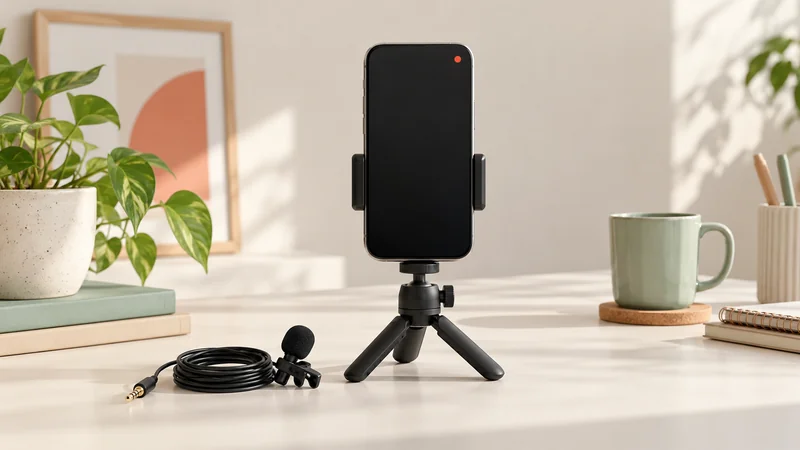
To go live on TikTok, open the app, tap the + create button, move along the creation options to LIVE, add a clear title and tap Go LIVE. The option appears only on accounts that have LIVE access. If it is missing, check eligibility before changing camera settings or buying equipment.
TikTok says hosts must be at least 18 and meet a local follower threshold. That threshold can vary by market. Treat the access message on your own account as the deciding information rather than assuming that a follower number quoted in an old video guarantees access in the United States or United Kingdom.
Before looking for the LIVE button
Make sure you are signed into the account you actually want to broadcast from. People with a personal profile and a separate business or hobby profile can easily check the wrong one. Open Profile, look at the username and confirm it before continuing.
You need permission for the microphone and, when showing camera video, the camera. A permission is the phone’s approval for an app to use that part of the device. Allowing the camera does not automatically allow the microphone. A picture with no voice can therefore be a permission problem rather than a broken phone.
Update TikTok through your phone’s normal app store. Then choose a place with a steady connection, a stable phone position and light in front of the subject. A window behind a dark object often makes the object harder to see. Move the object or turn the setup before assuming you need a new camera.
For a first session, choose one small job: demonstrate a simple craft, answer questions about a collection or explain one useful process. “Everything about my hobby” is difficult to organise. “How I clean this tool” gives you a beginning, middle and end.
Find and prepare the broadcast screen
- Open TikTok and tap +, normally at the bottom of the screen.
- Look through the creation modes for LIVE. You may need to swipe the row of options.
- Read any access message. Complete an age or eligibility step only through TikTok’s own flow.
- Write a title that tells a stranger what the session is about.
- Check the camera view, available settings and comment controls before starting.
The layout can change between app versions and accounts. Look for the named function rather than expecting a control to sit at one exact pixel. If you are viewing somebody else’s live video, return to your own creation screen; the viewer’s controls cannot start your broadcast.
A useful title is specific without needing hype. “Beginner watercolour: mixing three greens” gives someone a reason to join. “Come in!!!” does not explain what they will receive. Do not promise a giveaway, result or event that you are not actually offering.
Put any demonstration item where it will remain visible once the app adds comments and other controls. Hold it away from the edges. Small writing that looks readable on your own full screen may be unreadable when another person watches on a smaller phone.
What happens when you tap Go LIVE
The preview and the actual broadcast are different states. Until you confirm the live action, you are arranging your setup. After the stream starts, assume the camera and microphone are being sent to viewers. Look for the app’s live indicator, elapsed time or viewer controls to confirm the change.
Begin speaking even if the viewer count is low. A person may join halfway through your first sentence. Say what you are doing and show the useful part: “I’m testing two ways to hold the brush; this first grip makes a wider line.” That is easier to follow than repeatedly asking whether anybody is there.
There can be a delay between what you do and what a viewer receives. If you ask a question, allow time for the video to arrive and for the reply to come back. Repeating the question every second can make the session feel broken when the connection is working normally.
For a technical check, ask one concrete question at a time: can a trusted viewer hear your voice clearly, then can they see the object? “Is everything okay?” is too broad to locate a problem. Keep a second device muted if you use it to watch your own output, otherwise its speaker may feed back into your microphone.
Read comments without losing the explanation
Place the phone close enough to read comfortably. Trying to lean forward after every comment changes your microphone distance and camera framing. Explain a short section, pause, read a few comments and then continue. You do not need to answer every message immediately.
TikTok provides moderation controls, including options to manage comments and viewers. Available controls depend on your role and account. Look in the LIVE settings or the additional options menu for moderators, comment filters and viewer management. A moderator is someone you authorise to help manage the session; they do not need your password.
If someone posts private information, harassment or repeated spam, use the relevant mute, block or report control instead of reading the message aloud. Reading it can spread it further. For a first stream, one trusted helper who knows the topic is often more useful than a complicated collection of effects.
If you want to change cameras, find the camera-switch control and check what the other camera will show before using it. A rear camera may point at a doorway, paperwork or an untidy preparation area. Switching is a live action, so arrange both sides of the phone first.
If LIVE is missing or unavailable
Separate three different problems. No LIVE option can mean the account has not received access. LIVE opens but cannot start can mean an eligibility, account-status or connection issue. The stream starts but looks or sounds wrong is usually a capture or transmission problem. Each needs a different next step.
Check the signed-in username, your age information and any notice TikTok displays. If an account is restricted, follow the app’s explanation and appeal route where offered. Changing devices or using desktop software does not remove account restrictions. Never pay a stranger who claims they can unlock access by taking your login.
If you believe you meet the conditions, use TikTok’s Settings and privacy help or problem-reporting route. Describe what happens and which device you use. A useful report says that LIVE is absent from the create screen after an app update. “TikTok doesn’t work” gives support much less to investigate.
For camera or microphone problems, check the phone’s app permissions. On iPhone, find TikTok in Settings and check its access options; on Android, open the app information page and Permissions. Names vary by phone version. After changing a permission, reopen the app and check again. Our no-sound guide explains how to separate permission trouble from the wrong microphone.
Finish the session deliberately
Tell viewers what you have finished and what to do next. Then use the LIVE screen’s end or power control and confirm the end action. Do not rely on locking the phone, closing the screen or putting the device down. Wait until the app shows that the session has ended before having a private conversation nearby.
If you need a record of your work, check TikTok’s LIVE replay tools in the creator or LIVE area after the session. Access and storage periods can change, so download an available replay you want to keep promptly. A replay is not the same thing as a normal post already visible on your profile. Review it before sharing an edited extract.
Watch a short section with ordinary headphones. Listen for your speaking level, distracting room noise and long unexplained pauses. Improve one thing for the next session. A stable phone and clear explanation are a better first investment than decorative overlays that make the main activity smaller.
Phone LIVE or a computer?
A phone is the simpler route for talking and showing a physical activity. A computer becomes useful when you need a desktop game, presentation or several sources in one picture. TikTok LIVE Studio has its own access process; having mobile access does not guarantee every desktop feature.
Use our TikTok LIVE Studio guide when the task needs a computer. If you only want to practise speaking and framing, start with a local recording or follow the private rehearsal guide. Do not assume that a broadcast is private merely because you have not sent anybody the link.