
In the Facebook phone app, open What’s on your mind?, choose Live video, prepare your audience and description, then use Go live. Before starting, check whether you are posting as your personal profile, a Page or inside a group. These are different destinations with different permissions and audience rules.
Facebook checks eligibility before allowing a broadcast. Account age, the type of profile or Page, follower conditions and restrictions can matter. Read the message on the actual account or destination you intend to use. Having permission to comment on a Page does not necessarily give you permission to publish a live video as that Page.
Choose the destination before setting up the camera
A personal-profile stream is associated with you. A Page stream belongs to the Page identity. A group stream is posted within a particular community and follows its rules. An event can have its own arrangements. Decide which audience should receive the session before pressing the live-start button.
Look at the name and profile picture near the post composer. If you manage a Page, switch to the appropriate identity or use the Page’s publishing tools. Check that the selected destination matches the invitation you plan to send. A correct camera picture on the wrong Page is still the wrong broadcast.
For a group, open the group itself and inspect its posting options. Some communities restrict which members can post or use particular formats. Ask an administrator for the appropriate publishing permission when needed. Do not confuse being a group member with being allowed to broadcast there.
If you are helping an organisation, use its approved access controls. Facebook distinguishes access to manage Page content from community moderation. A helper who can remove chat messages may not be able to create the live video. Resolve that distinction before the event rather than sharing a password as a shortcut.
Prepare a phone broadcast
- Open the intended profile, Page or group in Facebook.
- Open the post composer, commonly labelled What’s on your mind?.
- Choose Live video from the posting options.
- Allow camera and microphone access if asked.
- Check the destination, audience, description and camera view.
- Use Go live only after those details are correct.
Some versions show live creation directly among the posting options, while others put it behind an additional menu. Look for Live video, not an ordinary video upload. Uploading an existing clip and broadcasting the camera now are different actions.
Describe the actual session in one or two useful sentences. For example, a gardening group might need “How to separate these seedlings without damaging the roots”. Viewers can then decide whether the topic answers their question. An unexplained “testing” title is less helpful when the session will remain available afterward.
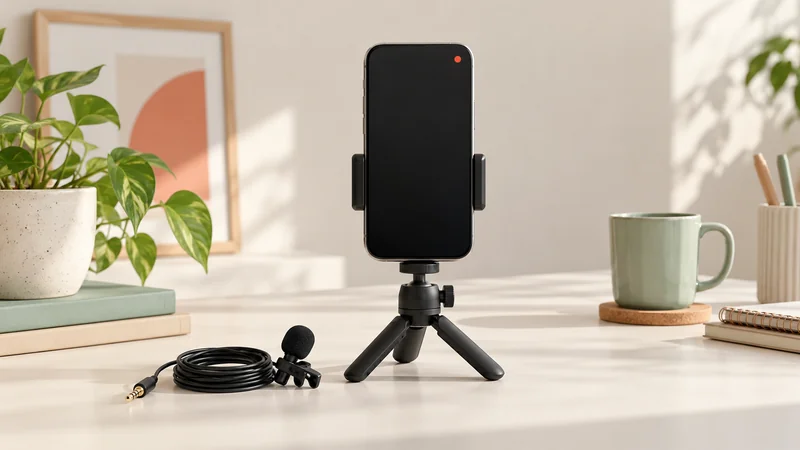
Use a stable phone support and light the subject from the front. Put demonstration items where they are easy to reach. If you plan to change to the rear camera, check what it points at first. Avoid discovering during the stream that your setup shows paperwork or a private room behind the subject.
Understand who can watch
Review the audience selector when Facebook offers one. Public means the session is intended to be available beyond a limited group of approved people. Friends, selected audiences and group membership apply different boundaries. The options available depend on the posting destination.
Do not assume a Page offers the same Only me choice as a personal profile. Do not assume a private group is suitable for confidential material simply because it is smaller than your profile audience. Members can still capture or pass on what they see.
For a technical rehearsal, use an explicit limited-audience or test option only if you can confirm its behaviour. Otherwise record locally without broadcasting. Our private rehearsal guide explains why a quiet public stream is not a private test.
When inviting US and UK viewers, put the date and time zones in the announcement. “Tomorrow at eight” becomes unclear when someone shares the post later or reads it from another country. Check the actual date’s time difference because daylight-saving changes do not happen on the same dates everywhere.
Start speaking and confirm the output
When Facebook shows that the broadcast is live, begin with the subject and the result viewers will see. A useful opening says what you will demonstrate, then starts the demonstration. It does not need several minutes of waiting for the viewer count to rise.
There may be a delay between your camera and the viewer. Ask a trusted person to check your voice and the important visual detail. Wait for the reply before repeating the question. Keep any local viewing device muted afterward so its speaker does not send your own stream back into the microphone.
If viewers report no sound, ask whether the whole stream is silent or only your voice. Check the app’s microphone permission and any mute control. A connected headset can change which microphone is used. Use the no-sound guide to narrow the problem before you replace equipment.
If the picture freezes, simplify what you are doing and inspect the connection. Walking out of Wi-Fi range while the app tries to move to mobile data can interrupt a session. A fixed position is easier to make reliable for a first demonstration.
Read comments and use help sensibly
Take questions at natural breaks. For a practical task, finish a safe stage before looking away to read a comment. You can explain that you will answer questions after showing the next step. This helps viewers understand why you are not replying immediately.
A trusted moderator can help remove spam and keep track of repeated questions. Give only the access needed for that role. Do not read abusive or private information aloud to explain why you are removing it. Manage the message through the appropriate viewer or comment control.
Keep the title and main subject consistent. If the session changes direction, briefly explain the change to people joining later. You can make a separate broadcast for a different topic instead of turning one useful demonstration into a long collection of unrelated conversations.
When a computer is the better route
Facebook’s desktop live tools, often called Live Producer, can be useful for a webcam or an encoder setup. An encoder is broadcasting software that sends assembled picture and sound to the platform. OBS is one option when you need scenes, desktop material or several sources.
Select the correct destination in the desktop tools before connecting software. A preview signal arriving from OBS does not by itself prove that Facebook has started the intended live event. Read the platform’s final start controls and status.
Avoid adding software merely because you think every stream needs a complicated studio. A phone may be enough for a short physical demonstration. If a computer is needed, our OBS setup guide explains the parts without assuming previous broadcasting experience.
Finish and keep a copy of the recording
Use the live screen’s Finish or end control and complete any confirmation. Wait until Facebook shows that the stream has ended before closing the app or discussing private details. If you used external software, also stop its outgoing stream and inspect the event’s state.
Meta’s Facebook Live storage policy gives new live recordings a 30-day availability period before automatic removal. Do not treat Facebook as your only long-term archive. Download a copy you need to keep while it is available.
For an individual download, find the video on the profile, Page or Meta Business Suite, open it and inspect the … menu for Download video. Available actions can differ with your access and device. A Page’s desktop navigation may place live videos under More → Live.
Open the downloaded file and check that it actually plays. A button click or a file with a promising name is not a useful backup until you can see and hear it. Store it somewhere you can find again with the date and subject in the filename.
Improve the next session from a real example
Watch the point where the most important action happens. Is the detail visible on a phone? Can the explanation be understood without the comments? Did you spend too long searching for an item off camera? Those observations give you specific improvements.
For the next live, change the main weakness first. Move the microphone closer if speech is distant, improve framing if objects are tiny or fix connection stability if the stream cuts out. A clear answer presented steadily is more useful to viewers than a decorative frame around an unclear demonstration.