
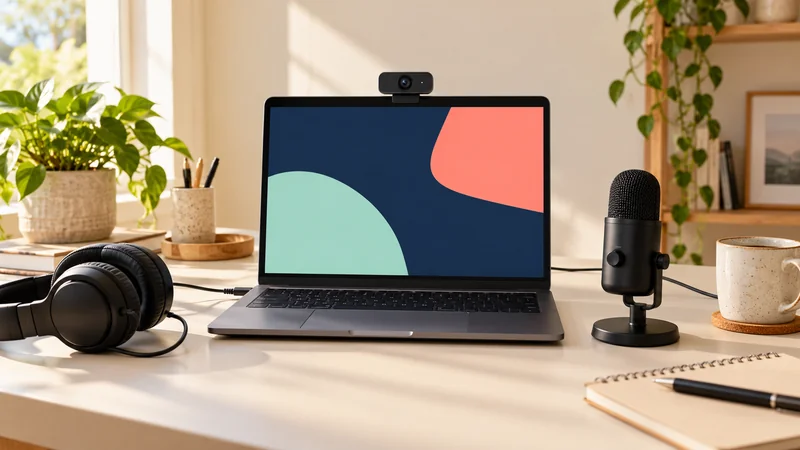
To use TikTok LIVE Studio, install it from TikTok’s official download page, sign into the intended account and check your LIVE access status. Then create a simple scene, add the camera or capture source you need, select the microphone and preview the result before starting.
Mobile LIVE access and desktop access are not identical promises. TikTok provides an application process in LIVE Studio and says conditions can vary by country or region. Check the access screen on your own account rather than assuming that a phone broadcast automatically unlocks every computer feature.
Decide whether you need the computer route
A phone is usually the simpler way to show a physical object or hold a short conversation. A computer is useful when viewers need to see a PC game, desktop application, presentation or a composition containing several sources.
Do not add LIVE Studio merely to make the setup look professional. It introduces source selection, audio routing and computer performance choices. Those are worthwhile when they solve your content problem, but unnecessary when one stable phone view already does the job.
Check TikTok’s current download page for operating-system support and system requirements. Use the official installer for your device. Do not install a file from a stranger who promises an unlocked version or guaranteed LIVE access.
Sign in and look at the username before creating scenes. People who operate a personal account and a separate topic account can easily connect the wrong one. A carefully designed scene sent to the wrong profile is still a failed setup.
Check and apply for desktop LIVE access
TikTok’s LIVE Studio guidance places the access status near the top-right area and provides Your LIVE access as the route to an application. Read the conditions shown to your account. They may refer to account history, recent broadcasting, followers or current restrictions.
For people who stream elsewhere, TikTok may offer an application involving their other channel. Submit information only through the official process and make sure it describes a channel you actually control. An application is not an approval, and a submitted form does not prove when access will be granted.
If access is missing, separate that from a computer fault. Reinstalling drivers cannot approve an account. Conversely, an approved account can still have a microphone or capture problem. Identify which stage fails before changing settings.
Follow TikTok’s age and account rules. Desktop software is not a way to evade a mobile restriction. If the account displays an enforcement notice, use the stated support or appeal route rather than borrowing credentials or paying for an access service.
Learn scenes and sources in plain language
A scene is the complete arrangement viewers receive. A source is one ingredient: a camera, game, window, image or other supported input. You can think of the scene as a small stage and each source as something you place on it.
Begin with one scene and the minimum sources for the job. For a software explanation, that may be one window and a microphone. For a game conversation, it might be the game plus a small camera view. The camera is optional when the content works without showing a face.
Name sources so you recognise them later. Desk camera is easier to troubleshoot than several unnamed sources. Keep source order intentional, because one visual element can cover another. Resize the important content before adding decoration.
Choose a layout around the phone viewer. A wide desktop screen shrunk into a narrow vertical display can make text unreadable. A cropped section, enlarged interface or portrait composition may explain the task better than showing your entire monitor at once.
Add a camera or capture source
For a camera, connect it and choose Add source → Camera in the selected scene. Pick the intended device and inspect the picture. TikTok’s guidance includes camera selection, rotation, flipping and resolution or frame-rate choices.
For a computer game or application, select the supported capture source that matches the task. A window capture focuses on one application; full-screen or display capture can show more of the computer. Keep the source application open in the way the capture method requires.
Look for the actual game or window name in the source properties. If the image is blank, verify that selection before changing every performance setting. Some applications and protected content may not support ordinary capture. Use the documented supported route for the content you are allowed to show.
If a webcam is already in use by another application, close that application and retry. Check the operating system’s camera permission as well. A camera light is a sign of device activity, not proof that the intended source appears correctly in this scene.
Set the microphone and avoid extra copies
Open the audio controls and select the input that corresponds to your microphone. Speak at the distance you will use during the session. Watch its meter, then test any game or application sound separately.
If you hear doubled speech, check whether both the webcam microphone and a separate microphone are active. Also mute any browser or phone playing your own live output. That playback can return through the microphone and create a delayed repeat.
Balance the voice against other sound. A game that feels comfortable through your headphones may still overpower speech in the outgoing mix. Make the quiet and loud parts of your demonstration during the test, not only the silent opening menu.
TikTok’s LIVE Studio guidance provides an audio test through its mixer and monitoring controls. Use headphones for monitoring so the test does not feed its own sound into the microphone. Finish the test and return monitoring to the arrangement you actually need for the broadcast.
Preview from a phone viewer’s perspective
Use LIVE Studio’s mobile preview where it is available for the selected layout. It helps show how landscape material appears in portrait or full-screen viewing. Some layout types have different preview support, so use the scene editing view when the app directs you there.
Check the smallest important detail. If you demonstrate a menu, can a phone viewer read the item name? If not, enlarge the application or show a tighter section. More pixels will not help much when the useful content still occupies a tiny part of the frame.
Keep important text away from places where comments and platform controls may appear. Do not assume your clean desktop composition will remain unobstructed on every phone. Build enough space around the main task that an overlay does not hide the essential step.
If you use portrait and landscape arrangements, inspect both. A source that fits one layout can be cropped badly in the other. Dual layout is useful when it serves the content, but it is extra work to check rather than a setting to enable automatically.
Start with a manageable output setting
Follow the quality choices LIVE Studio offers for your account and hardware. A stable, readable stream is the first objective. High frame rate and resolution use more processing and upload capacity, especially with a busy game in the background.
If the computer struggles, simplify the scene and close unnecessary heavy applications. If the connection struggles, inspect bitrate and network stability. The upload guide explains why a fast download figure is not enough to judge outgoing performance.
Do not confuse a local preview with a delivered stream. Before a public session, test as much as you can through the app’s supported preview and rehearsal tools. Use harmless material if you cannot confirm a private audience setting. Our rehearsal guide explains the limits of each test.
Go live, manage the session and end it
Complete the title, topic or other information the app requires. Give a new viewer a clear reason to stay: explain the process you will show, then start demonstrating it. Keep chat within reach without letting it cover the task you are teaching.
Use the app’s final live-start control and confirm the broadcast state. Check the output through a muted second device or a trusted viewer. If sound is missing, ask whether speech, game sound or everything is absent before changing the mix.
When finished, use LIVE Studio’s end control and confirm that the stream stopped. Do not assume that closing a scene editor or hiding the application ends transmission. Check any replay options afterward and keep a separate copy of material you need to retain.
If your task needs a different service, OBS Studio offers a general broadcasting approach. It still requires the receiving platform to allow your chosen connection. Software choice cannot replace account eligibility or a missing stream-key entitlement.